In a nutshell: Crypto.com’s built-in Tax calculator was deprecated in June 2024. For 2026 filing, download CSV transaction history from the Crypto.com App (Token Wallet, Cash Wallet, Card) and Cryptocom Exchange, then import into tax software or a partner tool. US users may also get Forms 1099-DA, 1099-MISC, and/or 1099-B by email. Educational only; not tax advice.
Last updated: October 13, 2026.
Looking for a Crypto.com tax report? As of mid-2024, the old Crypto.com Tax calculator no longer generates usable yearly reports. Crypto.com’s own Help Center and Tax site say the product was deprecated and that past reports from that tool are no longer applicable. What you use instead is the same foundation every exchange expects: complete CSV exports from the App and Exchange, plus any IRS information returns Crypto.com emails you for the tax year. This guide covers where to download those files, what they contain, how they pair with Form 8949, common pitfalls, and a short Canada note.
Table of contents
What Happened to Crypto.com Tax
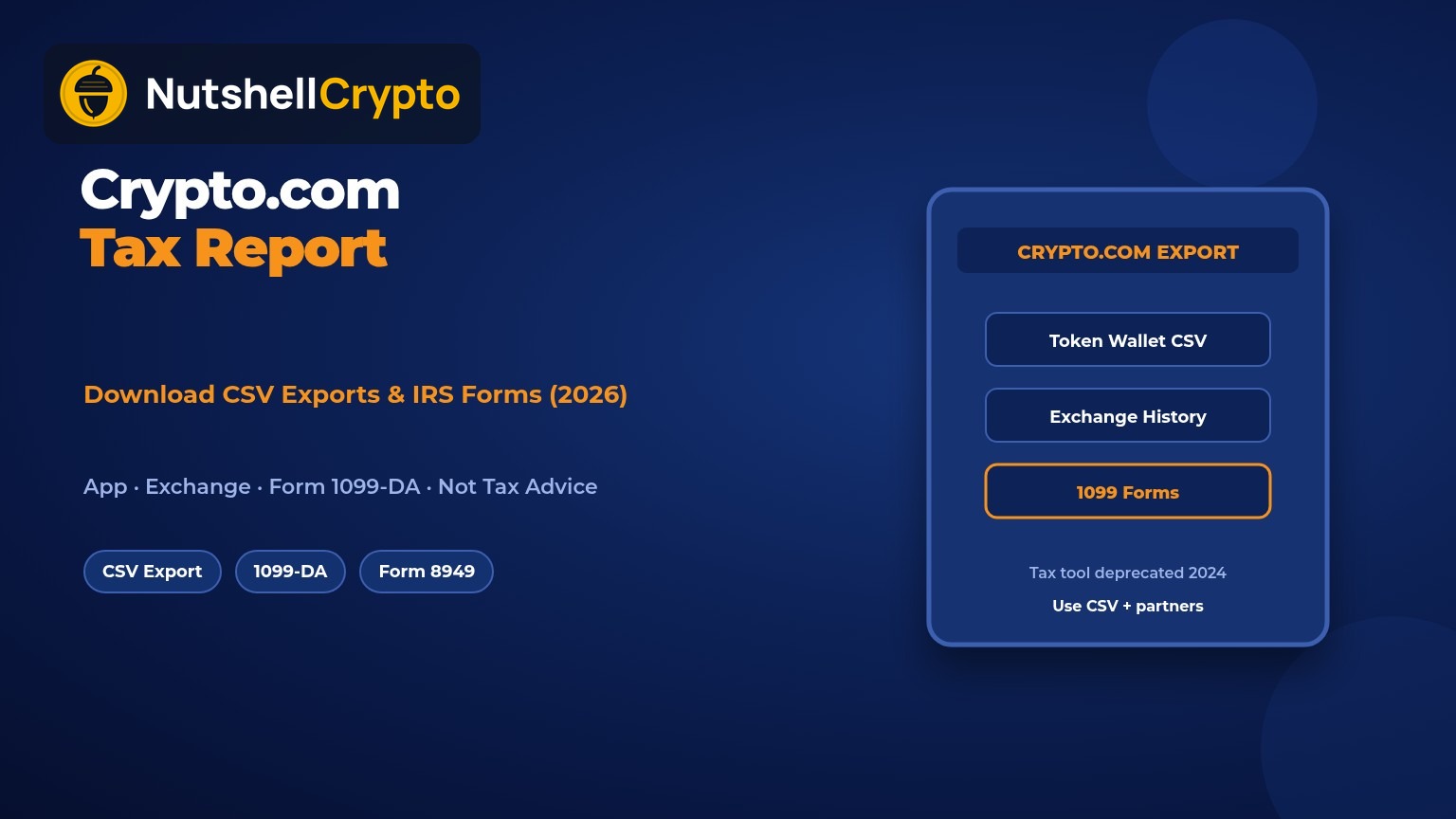
According to tax.crypto.com and Crypto.com Help’s Tax renewal / new partnership article (updated September 2024), Crypto.com Tax was deprecated as of 24–25 June 2024 and is no longer operational for generating new reports. The Tax site states that past reports from the legacy tool are no longer applicable. Crypto.com redirected users to partner tax services (Help names Koinly and TokenTax) and says existing users could still log in to retrieve older portal reports for a time and redeem partner promo codes on the Tax website.
Practical takeaway for 2026: do not rely on a fresh “Crypto.com Tax” capital-gains PDF from that legacy calculator. Build your file from App/Exchange CSVs and any Forms 1099 Crypto.com issues, then calculate gains in your own software or with a partner. For when a sale, swap, or reward is taxable in the first place, use our main beginner guide to crypto taxes in the US — this page stays on Crypto.com’s downloads and forms only.
How to Download Crypto.com App Transaction CSVs
Crypto.com Help’s article How do I export my transaction history? (App) (updated July 20, 2026) lists three exportable sources as CSV:
- Token wallet (your crypto activity — the primary file for tax software)
- Cash wallet (fiat)
- Crypto.com Visa card
Token Wallet steps (from Crypto.com Help):
- On the Accounts page, tap the History icon (top right).
- Tap Export (top right).
- Select Token Wallet, set the start and end dates (inclusive), then tap Export to CSV.
- When ready, tap Download for reports available on your phone.
Cash Wallet: open the Cash Wallet page → Export → date range → Export to CSV → Download.
Visa card: Card tab → More → Settings → Export Transaction History → choose Crypto.com Card and the date range → Export to CSV → download on your device.
Limits Crypto.com states: each report can cover up to 3 years of transactions; Export History shows the last 30 generated reports; downloads remain available for 30 days from the export date. For a long history, run consecutive ranges. For US calendar-year filing, export at least January 1–December 31 of the tax year — plus earlier years if you still hold coins bought then (cost basis often sits in older buys).
How to Download Crypto.com Exchange History
If you also use Crypto.com Exchange, App CSVs alone are incomplete. Crypto.com Help’s Exchange export guide (updated March 2, 2026) lists exportable sets including wallet transactions, deposits/withdrawals, order and trade history, lockup rewards, and referral rewards (Supercharger export noted as coming / copy-paste in the meantime).
General flow Crypto.com describes:
- Open the relevant report page.
- Enter the date range and filters, then Search.
- Click the Export icon.
For Wallet Transactions History, Order History, and Trade History, Crypto.com says the file appears under Export History within two days, with a summary file that flags the 65,000-record cap. Wallet transactions are limited to about a one-month range; other reports up to about six months. Under Orders → Transactions, All Transactions filters up to 180 days (from 1 November 2022), plus monthly Trade and Account Statements (CSV; up to 36 months of history). If an export fails or truncates, shorten the date range — Crypto.com notes a refresh can cancel some browser exports.
IRS Forms Crypto.com May Send (1099-DA, 1099-MISC, 1099-B)
For US persons, Crypto.com’s Help article 1099 Form for the 2025 Tax Year (updated February 19, 2026) explains which information returns may apply:
- Form 1099-MISC: may issue if you earned USD $600 or more in rewards from Lock-Ups, Earn, Referrals, and/or certain other activities in the prior calendar year.
- Form 1099-B: may issue if you traded contracts during the tax year (Crypto.com’s FAQ summarizes boxes such as profit/loss on closed contracts).
- Form 1099-DA: may issue if you engaged in certain reportable digital-asset dispositions from your Crypto.com account.
How you get them: Crypto.com says you receive an email from no-reply@crypto.com to the address on file with a link to download Form 1099-MISC, 1099-B, and/or 1099-DA. Check spam/junk; for a paper copy, use In-App Chat. Transaction history still downloads from the App as above.
What is on Form 1099-DA (Crypto.com’s summary for that year): asset code/name, units disposed, date sold or disposed (may be blank for some aggregated stablecoin reporting), and proceeds (USD value of the asset disposed of, minus fees). Critically, Crypto.com states that cost basis is not required to be reported on Form 1099-DA this year, and that they chose not to report cost basis during the transitional period to avoid unintended error. That matches the broader IRS broker phase-in: you still calculate basis yourself for Form 8949 when the form shows proceeds only. See the IRS page on Form 1099-DA and our focused note on the Form 1040 digital-asset question and digital asset tax / 1099-DA.
If a form looks wrong, missing, or issued in error, Crypto.com says to use In-App Chat. Multiple 1099 types can arrive in the same year. Whether or not a form arrives, report digital-asset income, gains, and losses that apply to you. For short- vs long-term treatment, see crypto capital gains tax — we do not repeat those rate tables here.
How to Use the Files with Form 8949 or Tax Software
A practical workflow for US filers:
- Download every relevant App CSV (Token Wallet first; Cash/Card if needed) and every Exchange export that covers the year — plus earlier years for basis.
- Save any 1099-DA / 1099-MISC / 1099-B PDFs from Crypto.com’s email link.
- Import CSVs into crypto tax software, or enter disposals on Form 8949 with your own cost basis where 1099-DA is proceeds-only, then roll totals to Schedule D.
- Report rewards income (Earn, lockups, referrals, etc.) on the correct income schedule even if no 1099-MISC was issued below the $600 threshold.
- Reconcile 1099-DA proceeds to your Form 8949 lines so broker totals match what you file.
If you also use Coinbase, keep the two platforms’ CSVs separate and mark transfers between them so software does not treat a wallet move as a sale. See our Coinbase tax report guide, transfer crypto taxes note, and crypto staking taxes for related cases. Crypto.com’s Tax site still points people toward partner calculators; the App Token Wallet CSV plus Exchange exports are usually the inputs those tools need.
Common Mistakes
- Waiting for a new Crypto.com Tax PDF. The legacy calculator was deprecated in June 2024; use CSVs and 1099s instead.
- Exporting only the App while you also traded on Exchange (or the reverse).
- Treating 1099-DA proceeds as profit. Crypto.com says cost basis was not reported on that form for the transitional year — taxable gain is proceeds minus basis.
- Skipping rewards under $600. No 1099-MISC does not automatically mean the income is non-taxable.
- Ignoring truncated Exchange exports (65,000-row / date-range limits) or letting Export History downloads expire after 30 days on the App.
- Forgetting DeFi Wallet / on-chain activity outside Crypto.com’s custodial App/Exchange — those need wallet-address imports or separate records.
Canada: Using Crypto.com Records for the CRA
Non-US customers do not receive US Forms 1099. Canadians still need the same App and Exchange CSVs (and any local account statements) to reconstruct CAD fair market values at disposition and acquisition. The CRA’s tip on reporting capital gains as a crypto-asset user points filers to Schedule 3 on the T1; the CRA books and records guide says to export exchange data regularly and keep records at least six years. Business-like trading may be business income instead of (or alongside) Schedule 3 — ask a Canadian tax professional when unsure. Broader context: cryptocurrency tax in Canada.
FAQ
Does Crypto.com still have a free tax report tool?
The legacy Crypto.com Tax calculator was deprecated in June 2024. Crypto.com directs users to partner services and to export transaction history from the App and Exchange instead.
Where do I download my Crypto.com tax report CSV?
In the App: Accounts → History → Export → Token Wallet (plus Cash Wallet and Card exports if needed). On Exchange: use the export controls on wallet/order/trade pages or Orders → Transactions for statements.
Will I get Form 1099-DA from Crypto.com?
Crypto.com may issue Form 1099-DA to US persons with certain reportable digital-asset dispositions. Forms are delivered by email from no-reply@crypto.com with a download link. Check Documents/email even if you expect a quiet year.
Does Crypto.com’s 1099-DA include cost basis?
For the 2025 tax-year FAQ Crypto.com published, they state cost basis is not required on Form 1099-DA that year and that they chose not to report basis during the transitional period. You still need your own basis for Form 8949.
What if I use both Crypto.com App and Exchange?
Export both. App Token Wallet CSVs do not replace Exchange trade and wallet history. Import every relevant file into the same tax software profile and match internal transfers.
Can Canadians get a CRA slip from Crypto.com?
Typical crypto capital gains are not filed from a US 1099. Download CSVs, convert values to CAD, and report on Schedule 3 or as business income as your facts require.
Sources
- Crypto.com Tax (deprecation notice and partners)
- Crypto.com Help: Tax renewal / new partnership
- Crypto.com Help: Export transaction history (App)
- Crypto.com Help: Export transaction history (Exchange)
- Crypto.com Help: 1099 Form for the 2025 Tax Year
- IRS: Understanding your Form 1099-DA
- IRS: About Form 8949
- CRA: Reporting capital gains as a crypto-asset user
- CRA: Keeping books and records of crypto-assets
Educational content only. This is not financial, legal, tax, or investment advice. Tax rules change; talk to a qualified tax professional about your situation. NutshellCrypto is not affiliated with Crypto.com.